WordPress costs nothing to download. Running a good WordPress site takes time, money or both, and that gap explains most of the praise and most of the complaints the platform gets. In 2026, with WordPress 7.0 as the current major release, it can still build almost anything on the web. Whether you should use it depends on how much of the work you're willing to own.
Icon Polls gives WordPress 3.5 out of 5. It scores high on freedom and ecosystem and falls away on upkeep and ease for newcomers. Here is how that breaks down.
The Scorecard
| Area | Score |
|---|---|
| Flexibility and customisation | 4.7/5 |
| Themes and plugin ecosystem | 4.6/5 |
| Developer experience | 4.4/5 |
| Content publishing tools | 4.2/5 |
| Mobile app experience | 3.4/5 |
| Ease of use for beginners | 3.1/5 |
| Maintenance and security burden | 2.8/5 |
| Overall | 3.5/5 |
The spread tells the story. Nothing else in its class matches WordPress on reach, but it makes you work for it.
Ownership Is the Whole Pitch
Self-hosted WordPress, the version you download from WordPress.org, is open-source software you install on a web host of your choice. The files, the database, the themes, the plugins and every setting belong to you. If your host disappoints you, you can move the site elsewhere. A fully managed website builder can't match that. Builders are simpler, but they keep most of the technical decisions behind the curtain.
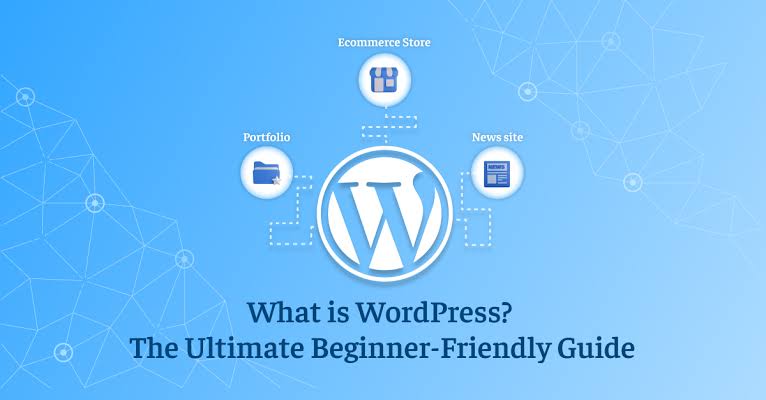
That freedom explains the range of sites WordPress runs: blogs, business sites, online magazines, portfolios, school and nonprofit pages, job boards, directories, property listings, membership communities, course platforms and online stores. Plugins add the rest, including contact forms, SEO tools, payments, bookings, analytics, multilingual content and security.
The catch is that two WordPress sites can behave in completely different ways. Hosting, theme, page builder, caching and custom code all change the result. WordPress supplies the frame. How good the finished site is depends on you.
The Block Editor Era, Now at 7.0
Editing has improved a lot over the past few years. The block editor and Site Editor let you arrange headers, footers, navigation, templates and patterns visually, and block themes open up much more of the site to people who don't write code. Revisions, scheduling, user roles, comments, menus and the media library are all mature and dependable.
WordPress 7.0 continues work on editing, collaboration, performance, APIs, accessibility and developer tooling, and adds AI-related integration tools. None of this changes the basic trade. It does make everyday publishing smoother than it has ever been.
The App Is a Notebook, Not a Workshop
The WordPress mobile app handles quick jobs well. You can write and edit posts, upload images, moderate comments and check notifications, which makes it useful for bloggers, journalists and small business owners who need to fix something while they're away from a desk.
It can't replace the desktop dashboard. Theme work, plugin configuration, debugging, backups and serious WooCommerce administration all belong in a browser on a bigger screen. That explains the 3.4.
A Sane First Week for Beginners
New users usually run into trouble by installing everything at once. Take it slowly:
- Choose a domain and a host that meet current WordPress requirements.
- Install WordPress, switch on HTTPS and pick a lightweight theme.
- Create the core pages: Home, About, Services, Contact and Privacy Policy.
- Set the site title, logo, colours, fonts, menu and homepage layout.
- Add only the plugins that solve a real problem, such as a form, backups, security, SEO, caching and analytics. Don't install two plugins that do the same job.
- Before launch, test on a phone and a computer, check that forms work, compress large images, proofread, make a backup and confirm you can restore it.
If you want to practise first, WordPress Playground runs a temporary site in your browser without any hosting. The official documentation and Learn WordPress materials provide structured tutorials after that.
Getting It Installed Without Regret
The current download covered in this review is WordPress 7.0.2. Most hosts offer a one-click installer, which is the easiest route. A manual install means uploading the files, creating a database, entering its details and finishing the setup in your browser.
The recommended baseline in 2026 is PHP 8.3 or higher, MySQL 8.0 or MariaDB 10.11 or higher, and HTTPS, usually on Apache or Nginx. Older server software may still run WordPress, but it creates security and performance risks. Check your host before you commit to it. If you're still comparing providers, you can vote for the web hosting companies you trust most in our community poll.
Download WordPress only from the official project or through a reputable host. Modified packages from random sites, and "free" copies of premium themes and plugins, can hide spam links, malware or secret admin accounts.
Where the Money Actually Goes
No official "cost of WordPress" figure exists, because the cost depends entirely on what you build. A personal blog can be cheap. A busy store needs stronger hosting and probably professional help.
| Expense | How it's paid | What it covers |
|---|---|---|
| WordPress core | Free | The open-source software itself |
| Domain name | Yearly | Your site's public address |
| Hosting | Monthly or yearly | Storage for files and the database |
| Themes and plugins | Free or paid | Optional design and feature upgrades |
| Maintenance | Your time or a paid service | Updates, backups, security, fixes |
Premium tools that each carry their own subscription are the cost people most often miss.
Built for Developers, With Strings Attached
Developers get a lot to work with. The toolkit includes classic and block themes, custom plugins, custom post types, blocks, the REST API, hooks and filters, WP-CLI, coding standards and thorough code references. Modern builds mix PHP, HTML, CSS and JavaScript with a growing set of block-based tools.
Weak code carries a real cost, though. A careless theme or plugin can slow a site down, open security holes or break after an update. Professional work needs version control, staging, backups, performance testing and a clear update routine.
The Plugin Pile-Up Problem
This is where WordPress loses most of its points. Add a page builder with its own interface, a theme with its own settings panel and a dozen plugins with their own menus, and the dashboard turns into a mess. Beginners find conflicts, failed updates, caching glitches and hosting limits hard to diagnose. The 2.8 for maintenance reflects that.
What Earns Praise, What Still Grates
- Strong: real ownership and portability, a huge theme and plugin library, mature publishing tools, far less need for code, deep developer resources, and a global community of forums, events and professionals.
- Weak: security, backups and updates fall on you, performance varies widely with hosting, paid add-ons pile up, the app is limited, and new users often confuse self-hosted WordPress with managed WordPress services.
Three Things People Ask
Do I need to code?
Not for a basic site. Code becomes useful for custom themes, plugins, advanced integrations or very specific design changes.
Is WordPress safe?
It can be, if you keep core, themes and plugins updated, use strong passwords, keep working backups and run it on well-maintained hosting.
Can I move my site later?
Yes. The files and database can move to any compatible host, and many hosts and plugins help with migration. Back up and test before you switch.
Where the 3.5 Lands
WordPress remains one of the best choices for anyone who values control and room to grow. It stays below four stars because it asks more of the owner than hosted builders do. A careless setup gets complicated quickly. A disciplined one, meaning reliable hosting, a light theme, a few trusted plugins, regular backups and a staging site for big changes, is hard to beat.